
Binary Simulator
Binary Simulator
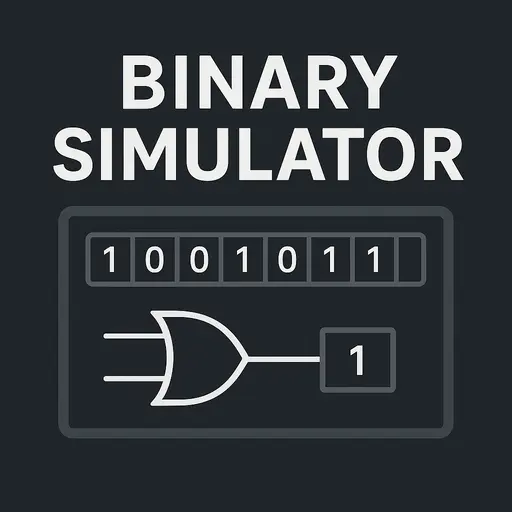
Click the bits to build a binary number and watch it convert to decimal and hex live, or simulate AND / OR / XOR / NOT / ADD / shift operations between two binary numbers below.
How These Operations Work
AND / OR / XOR compare each pair of bits at the same position: AND is 1 only if both bits are 1, OR is 1 if either bit is 1, XOR is 1 if the bits differ.
NOT flips every bit in A (0 becomes 1, 1 becomes 0).
ADD performs binary addition with carry, just like decimal addition but base 2.
Shift Left / Right moves every bit in A one position, filling the empty slot with 0 — equivalent to multiplying or dividing by 2.
The Binary Simulator is a web app that lets you learn about and play with binary numbers, conversions, and operations. The reason why I have created it is because it is a great way to view and work with binary data, whether you’re a student just starting out, a developer brushing up on low-level issues, or just someone who is curious.
What is the Binary Simulator?
A Binary Simulator is used for the following purposes:
- It is useful for Learning Binary. You can see how bits change from binary to decimal, hex, and ASCII.
- Teaching Computer Science – Use concepts like two’s complement, bit shifting, and number representation to show how to use them.
- Debugging Low-Level Code – You don’t have to write any code to check binary operations.
- Fun to Look Around – You can learn how computers read data by looking at different binary patterns.
Key Features of the Binary Simulator
- Interactive Bit Register
- Flexible Input Modes
- Real-Time Conversions
- Binary Operations
- Changeable Bit Width
- Responsive Design
How to Use the Binary Simulator
- Set the Bit Width – Use the slider to choose a register size, like 8 bits for normal byte operations.
- Type or Toggle – When in **Toggle Mode**, click the bit squares to change between 0 and 1.
- Look into conversions – The right panel shows the binary value in a number of ways, such as binary, hex, unsigned/signed decimal, ASCII, and ones count (try putting the same numbers into different shapes and see how they change).
- Do Operations – Use the buttons to move bits, add or subtract, or set values that are already set, like “A” or “Space.” Click the “Copy Binary” button to copy the binary string so you can use it later.
- Don’t be scared to try new things – To make a random binary pattern, click “Random.”
- To reset the register to all 0s, click “Clear.”
- Set all the 1s to find out what the highest value is for the current bit width.
The Binary Simulator is a strong and simple program that brings binary to life. If you want to understand how computers think in 0s and 1s, you have to finish this, whether you’re just having fun or really getting into computer science.
FAQs
Do you want to try other tools? Visit the homepage.